
Adobe Illustrator Explained: What It Is and How It Works
Adobe Illustrator is Adobe's vector design app. Short answer, it helps you create logos, icons, illustrations, typography, and other artwork that stays sharp at any size.

If you've seen the phrase AI Illustrator, it usually means Adobe Illustrator, not artificial intelligence. If you're wondering what is short for Adobe Illustrator, many designers simply say "Illustrator" or "AI." The key thing to know is simple: it's built for clean, scalable design. Next, let's look at what it does, how it works, who uses it, and whether it's free.
What Adobe Illustrator does best, and how it is different from other design apps
So, what is Adobe Illustrator software in plain English? It's a design tool for drawing with shapes, lines, and curves instead of pixels. That difference matters because vector artwork can grow or shrink without turning fuzzy.
What is the use of Adobe Illustrator? Most people use it for logos, icons, branding, posters, package design, infographics, and print graphics. It's also common for digital illustrations and social media assets that need clean edges.
A quick comparison helps here:
| Tool | Best for | Image type |
|---|---|---|
| Illustrator | Logos, icons, scalable artwork | Vector |
| Photoshop | Photo editing, texture-heavy graphics | Pixel-based |
That's why Illustrator and Photoshop often work together, but they don't do the same job. Photoshop edits photos. Illustrator builds artwork from editable paths.
Vector graphics explained in a way that actually makes sense
Think of a logo on a business card, then picture that same logo on a billboard. In Illustrator, both versions can stay crisp. That's the basic idea behind vector graphics.
Vectors are made from paths. A path is a line between points, called anchor points. You can move those points, bend the line, change the shape, and still keep everything clean. It feels less like painting and more like building with flexible wire.
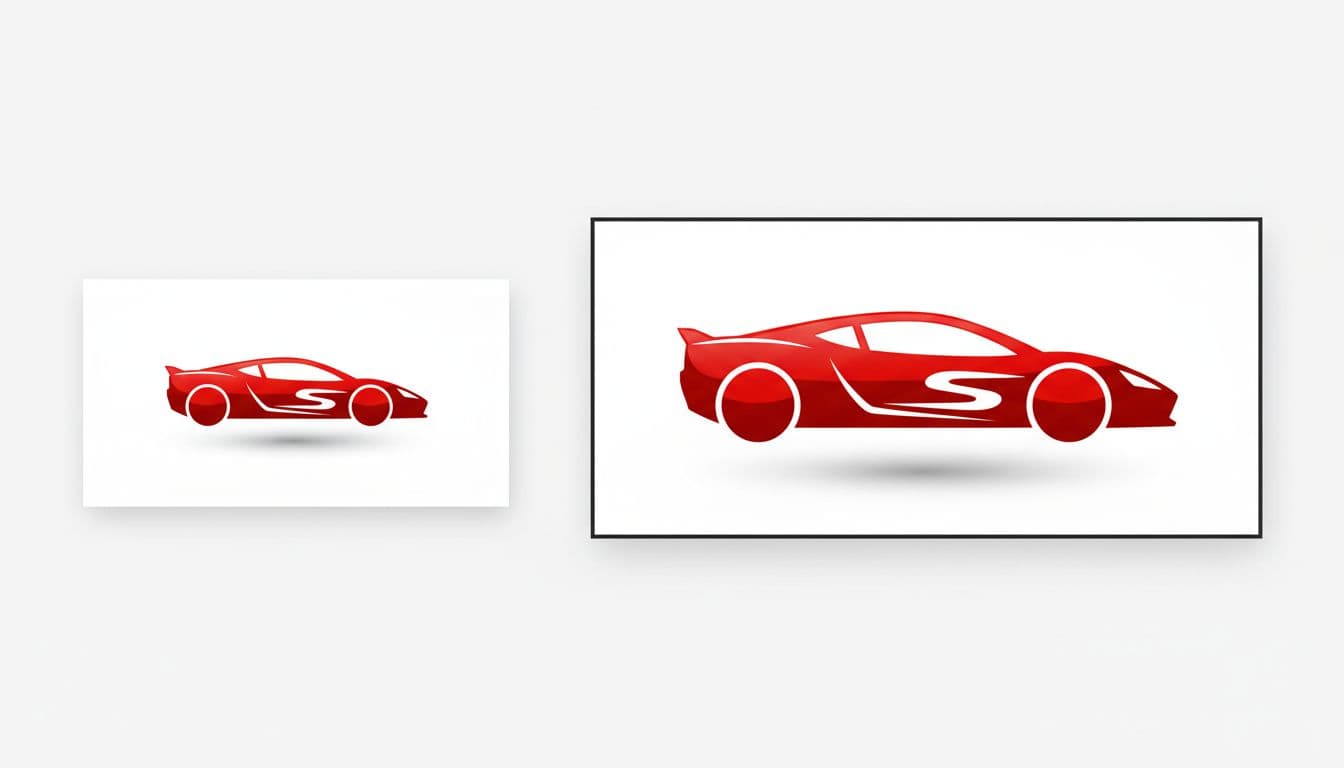
If you need a simple answer to what is an example of Illustrator work, think of a logo set, a group of app icons, product packaging, or an infographic.
Who uses Illustrator, and what kinds of projects fit it best
Beginners use Illustrator to learn design basics. Graphic designers use it for brand systems and print files. Illustrators use it for stylized artwork. Marketing teams use it for ads, banners, and social posts. Small business owners often use it to create labels, menus, or logo files.
People also ask, what is an Illustrator? That word can mean two things. It can mean a person whose job is making art, or it can mean Adobe Illustrator, the software itself.
Adobe Illustrator is a skill, and it's a marketable one.
That matters because employers often want designers who can create clean, editable files that work in print and on screen.
How Adobe Illustrator works, from the workspace to the most-used tools
Illustrator can look busy at first, but the workflow is simple once you know the main parts. You open a document, draw or place artwork on an artboard, edit objects with tools, then control color, stroke, alignment, and layers through panels.
The workspace, artboards, layers, and panels you need to know first
The artboard is your canvas. You can use one artboard or several in the same file, which helps when you're making a logo set, social graphics, or multiple page-sized layouts.
Layers help you stay organized. For example, you might keep text on one layer, icons on another, and a background on a third. That makes editing faster and safer.
Panels are where a lot of control lives. The Color panel changes fills and strokes. The Align panel lines objects up. The Properties panel shows useful options for whatever you've selected. If you want a guided walk-through, this free Adobe Illustrator beginner course starts with the interface before moving into tools.
How you create and edit artwork with selection, pen, shape, and type tools
Most Illustrator work follows a repeatable pattern. First, you make a shape or path. Next, you select it. Then, you change its fill, stroke, size, or position. After that, you refine the points and curves until it looks right.
The Selection Tool moves whole objects. The Direct Selection Tool edits anchor points and path segments. The Pen Tool draws custom paths, while the Curvature Tool gives beginners a friendlier way to build smooth curves.

You'll also see the Type Tool for text, the Line Segment Tool for straight lines, and the Shape Builder Tool for merging or cutting shapes. Meanwhile, the Magic Wand and Lasso help with selection. The Paint Brush and Blob Brush add a more hand-drawn feel.
People often ask how many tools are in Adobe Illustrator. The exact total can change by version, so it's better to think in groups. Most beginners start with a core set, then add more as projects get harder.
Cost, learning curve, and whether Adobe Illustrator is right for you
People often ask, is Adobe Illustrator free to use? Usually, no. Illustrator is a paid Adobe app, although Adobe often offers a free trial. Since plans change, check Adobe's current pricing before you decide.
Is Adobe Illustrator free to use, and what are your options
If you want the shortest answer, Illustrator is not usually free for long-term use. A trial can help you test the app before paying. That's useful because the learning curve varies based on your goals.
For simple icons and basic layouts, beginners can pick up the basics fairly fast. For logo systems, complex illustrations, and print-ready files, it takes more practice.
When Illustrator is the right choice, and when another tool may be better
Illustrator is a strong fit for logos, icons, type-based designs, packaging, and anything that must scale cleanly. If your work is photo-heavy, Photoshop may fit better.
People also ask, why is Adobe Illustrator so popular. The answer is practical. It gives precise control, works well with other Adobe apps, and creates files that stay editable. As for how many types of Illustrator there are, the software is one main app, but users work in many styles, such as logo design, vector art, and technical illustration.
Dive into Design: Free Adobe Illustrator Course by GalaxyonKnowledge
The Free Adobe Illustrator Course is structured into ten lessons, each focusing on different tools and features of the software. The course begins with an Introduction to the Illustrator Interface, helping users understand What Adobe Illustrator is and How to Navigate its Tools.
As the lessons progress, students will learn about essential tools such as the Selection Tool and the Direct Selection Tool, which are crucial for selecting and manipulating objects. The Course also covers The Magic Wand and Lasso Tools, which allow for more precise selections. Further along, students will explore the Pen Tool, which is fundamental for creating custom shapes and paths.
The Curvature Tool is introduced next, providing an alternative way to draw smooth curves. The Type Tool is also explained, highlighting how to add and manipulate text within designs. The course continues with the Line Segment Tool and the Shape Builder Tool, which are important for creating and combining shapes effectively.
Finally, The Paint Brush Blob and Paint Brush Tool are discussed, allowing users to add artistic touches to their illustrations. Overall, this course offers a comprehensive guide to mastering Adobe Illustrator through practical lessons on its various tools.
The main takeaway
Adobe Illustrator is a vector design program built for artwork that needs to stay sharp at any size. It works by letting you create and edit paths, points, shapes, and text on artboards using a set of flexible tools.
If you're new to it, start with the workspace and a few core tools first. Once those click, the rest of Illustrator feels far less intimidating.